Does GeForce Experience lower FPS?
Reviewed and updated on September 15, 2026.
Yes, it can on some PCs. The graphics driver itself is rarely the only reason. Performance changes are more often linked to NVIDIA Overlay, Instant Replay, background recording, game filters or notifications. A controlled before-and-after test is the fastest way to know what is happening on your own system.
Why GeForce Experience can affect game performance
GeForce Experience, now replaced by the NVIDIA App on many systems, can add processes that monitor the game, draw an overlay and keep a rolling video buffer for Instant Replay. Those features use some combination of GPU resources, video memory, system memory, storage bandwidth and CPU time. On a powerful PC the difference may be too small to notice. On a system already close to its CPU, GPU, memory or thermal limit, the same background workload can make frame delivery less stable.
This is why two players can report opposite results and both be correct. The effect depends on the game, resolution, encoder settings, available headroom, storage speed and which NVIDIA features are enabled.
How to test NVIDIA Overlay without guessing
- Create a baseline. Use the same game, map or built-in benchmark, graphics preset, resolution and FPS cap. Close unrelated apps and record average FPS, 1% lows and frametime if your tool exposes them.
- Disable only the optional features. Turn off NVIDIA Overlay, Instant Replay, recording and game filters. Keep the graphics driver installed so the comparison isolates the overlay and capture layer.
- Restart the game. Repeat the same route or benchmark for a similar amount of time. A single loading screen or a different multiplayer match is not a reliable comparison.
- Compare more than average FPS. Check whether 1% lows improve, frametime spikes become less frequent or input response feels more consistent. Repeat the pair of tests when the difference is small.
Average FPS is only part of the answer
An overlay may leave average FPS almost unchanged while introducing occasional frametime spikes. Those spikes can feel like micro-stutter even when the FPS counter still looks high. Background capture can also create short storage or encoding bursts, so watch consistency rather than relying on one peak number.
Input lag is also easy to misread. A lower or unstable frame rate increases the time between displayed frames, but network latency, display mode, V-Sync, frame generation and the game engine can create similar symptoms. Change one variable at a time.
Should you uninstall GeForce Experience?
Usually not as the first step. The useful test is to separate the NVIDIA graphics driver from optional overlay and capture features. If disabling those features removes the issue across repeated tests, you can leave them off and keep the driver. If nothing changes, restore your preferred settings and investigate other evidence such as temperatures, GPU utilization, memory pressure, startup apps and power behavior.
When it makes sense to leave the overlay enabled
Keep it enabled when you actively use recording, screenshots or filters and your comparison shows no meaningful performance loss. A feature that costs a few frames but supports your workflow can still be a good trade. The goal is not to disable everything; it is to know the measurable cost on your hardware.
Check the symptoms, then inspect your PC
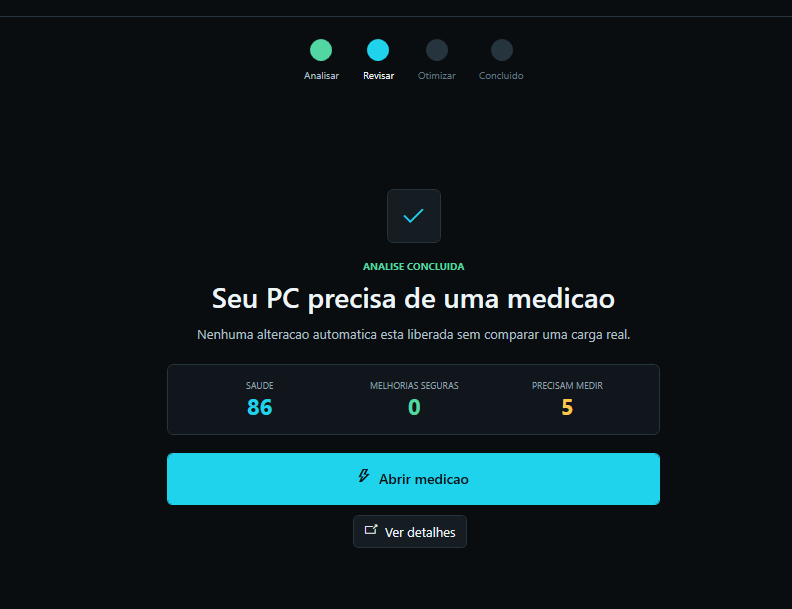
The free web questionnaire helps organize your FPS and stutter symptoms. It does not inspect your hardware or change Windows. The downloadable TIPS35 app performs the local read-only analysis and shows a personalized plan before any supported change is applied.
TIPS35 plan: R$47 per month, automatic renewal until canceled, automatic license-key delivery after approved payment and official updates included. Available payment methods are shown at checkout and may vary by country.
Check my symptoms Download TIPS35 View plan and payment details